
Managing customer requests directly from Outlook can quickly become overwhelming. Emails get buried, forwarded, or forgotten. The solution is simple: automatically convert incoming emails into structured support tickets inside WordPress.
This guide explains how to set up Office 365 Email to Support Ticket functionality using Smart Support helpdesk and ticket system WordPress Plugin and its Email Bridge integration. By the end, your Microsoft 365 mailbox will automatically create tickets in WordPress, securely and reliably.
What is Smart Support Plugin?
Smart Support Plugin is a WordPress helpdesk system that transforms your website into a fully functional ticket management platform.
Instead of handling support in personal inboxes, Smart Support allows you to:
- Centralize all customer requests
- Assign tickets to team members
- Track ticket status (Open, Pending, Resolved)
- Maintain a searchable support history
- Improve response times and accountability
When combined with Email Bridge, it enables Office 365 Email to Support Ticket automation, meaning every email sent to your support mailbox becomes a ticket automatically.
This removes manual work and ensures no customer request gets missed.
How Email Bridge Connects Office 365 to WordPress
Email Bridge is the integration layer that connects Microsoft 365 to WordPress using secure OAuth 2.0 authentication.
Here’s how the system works:
- A customer emails support@yourcompany.com
- Email Bridge connects securely to Office 365
- New emails are retrieved using Microsoft Graph
- WordPress automatically creates a support ticket
- Your team manages and replies from the dashboard
This is the core process behind Office 365 Email to Support Ticket automation.
Unlike older IMAP setups, this method uses Microsoft’s secure sign-in system, which supports Multi-Factor Authentication and modern security policies.
Step-by-Step: Set Up Office 365 Email to Support Ticket
Below is a simplified walkthrough to connect Microsoft 365 to WordPress.
Step 1: Create a Microsoft App (Azure Setup)
Go to:
https://portal.azure.com
Sign in with your Microsoft 365 administrator account.
Follow Microsoft’s official guide if needed:
https://learn.microsoft.com/en-us/entra/identity-platform/quickstart-register-app
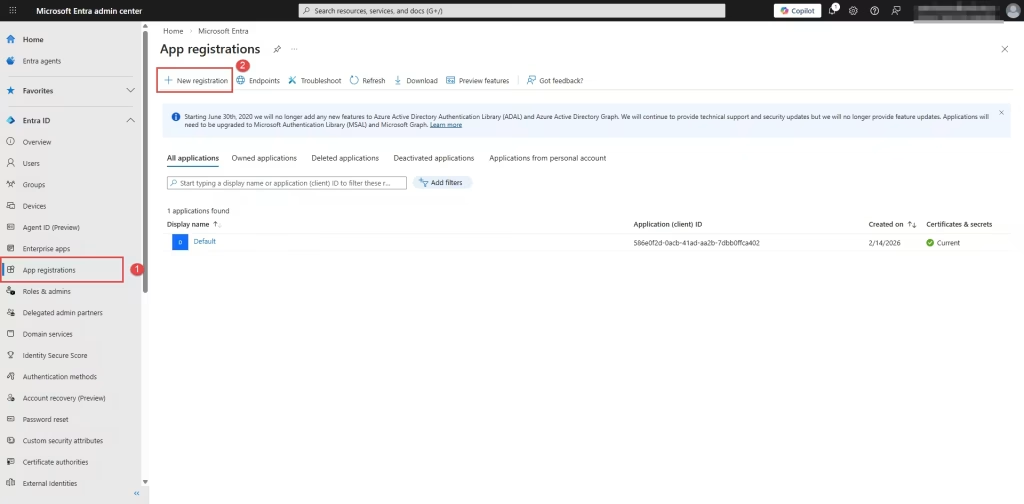
Create App Registration
- Open Microsoft Entra ID
- Click App registrations
- Click New registration
- Name it:
Smart Support Email Bridge - Choose: Accounts in this organizational directory only
- Add Redirect URI (copy from WordPress Email Bridge settings)
After creating:
- Copy the Application (client) ID
- Create a Client Secret
- Copy the Secret VALUE immediately
Add Permissions
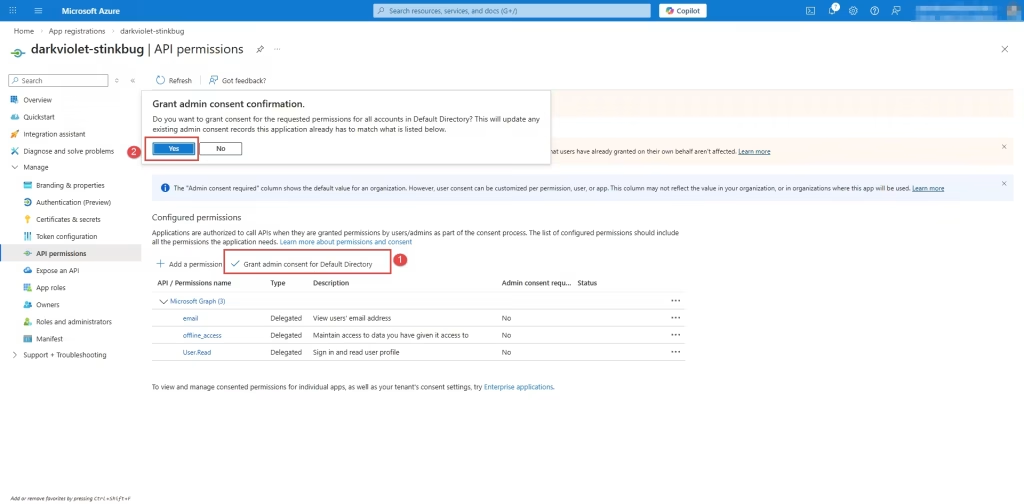
Under API Permissions → Microsoft Graph → Delegated Permissions:
Add:
- Mail.Read
- User.Read
- offline_access
Grant admin consent if available.
This completes the Microsoft portion required for Office 365 Email to Support Ticket functionality.
Step 2: Configure WordPress Email Bridge
In WordPress:
- Go to Email Bridge → Integration
- Click Add New Account
- Select Outlook / Microsoft 365
- Choose Modern Authentication (OAuth 2.0)
Enter:
- Tenant ID (recommended for custom domain) or type
consumers - Client ID
- Client Secret (VALUE)
- Verify Redirect URI matches Azure exactly
Set:
- Sync Frequency (recommended every 10 minutes)
- Account Status: Active
Click Save.
Step 3: Connect the Mailbox
After saving:
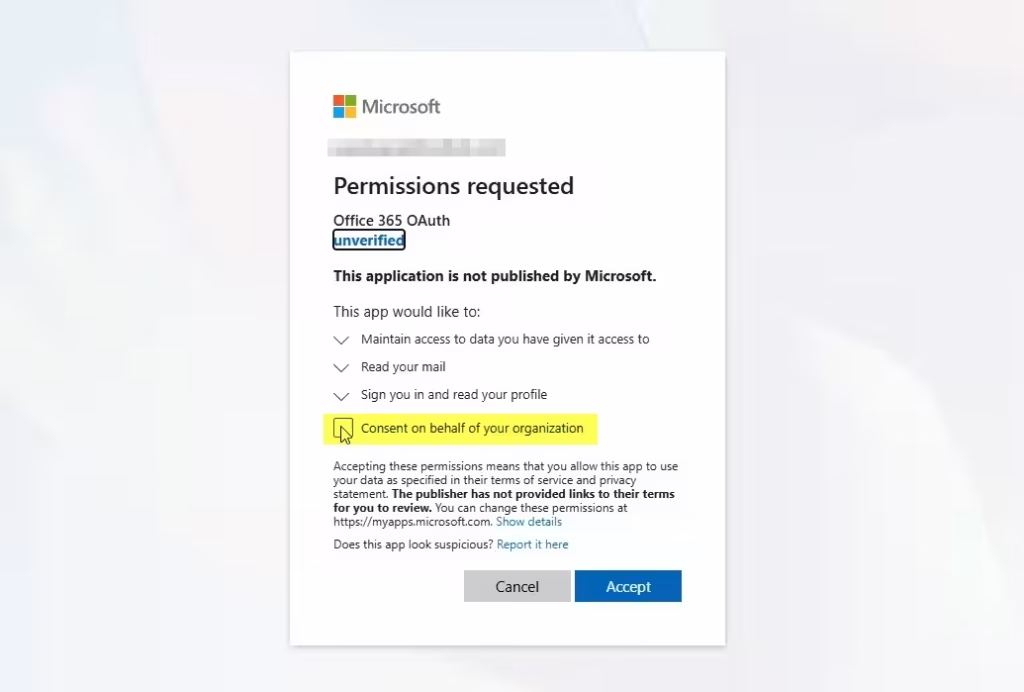
- Click Connect Microsoft 365
- Sign in
- Complete MFA if prompted
- Accept permissions
You should now see:
Connection Status: Connected
At this point, your Office 365 Email to Support Ticket integration is active.
Testing the Integration
To verify everything works:
- Send a test email to your support mailbox
- Go to Email Bridge → Click “Fetch Now”
- Open Smart Support → Tickets
- Confirm the test email appears as a ticket
If it does, setup is complete.
Security Best Practices
Because Office 365 Email to Support Ticket uses OAuth:
- Your password is never stored in WordPress
- Access tokens refresh automatically
- Permissions are limited to reading mail only
- Access can be revoked anytime
Additional recommendations:
- Use a dedicated support mailbox
- Rotate client secrets before expiration
- Use HTTPS on your WordPress site
- Keep plugins updated
Microsoft OAuth documentation:
https://learn.microsoft.com/en-us/entra/identity-platform/v2-oauth2-auth-code-flow
Emails Not Creating Tickets
Check:
- Account is Active
- Permissions were granted
- Sync frequency is set
- Try manual Fetch Now
Most issues with Office 365 Email to Support Ticket setups are caused by incorrect Redirect URIs or expired Client Secrets.
Implementing Office 365 Email to Support Ticket inside WordPress transforms your support process from inbox chaos into a structured, trackable workflow.
With Smart Support Plugin and Email Bridge:
- Emails become tickets automatically
- Agents manage issues centrally
- Nothing gets lost
- Security remains enterprise-grade
If your organization already uses Microsoft 365 and WordPress, this integration is one of the most effective ways to modernize your support operations without adding external SaaS tools.
Frequently Asked Questions
Yes. You can add multiple Office 365 accounts in Email Bridge.
Yes. OAuth fully supports Multi-Factor Authentication.
Yes. Remove app permissions at:
https://account.microsoft.com/privacy/app-permissions

About the author
Smart Support Team builds tools for happier, faster support.
