Smart Support – Documentation Add-On
Smart Support – Documentation is an add-on for the Smart Support plugin that allows support agents to search and insert knowledge base articles directly into ticket replies.
Instead of switching tabs or manually copying article links, agents can instantly find relevant documentation from Instant Knowledgebase and insert it into replies in a clean, consistent format.
This helps teams:
- Respond faster
- Reduce repetitive answers
- Maintain consistent support quality
- Improve customer understanding
How It Works (In Simple Terms)
When replying to a support ticket:
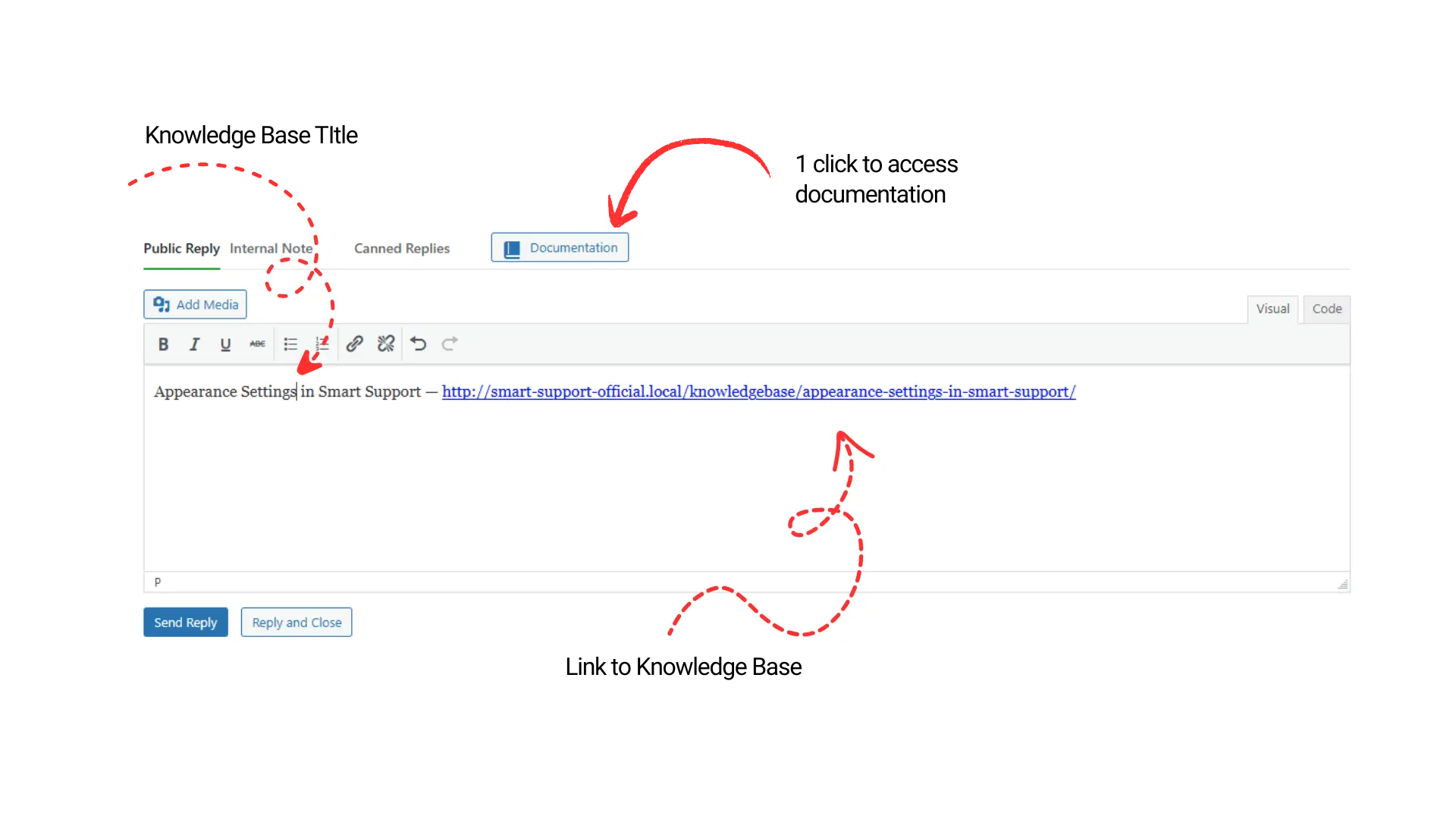
- The agent clicks the Documentation button
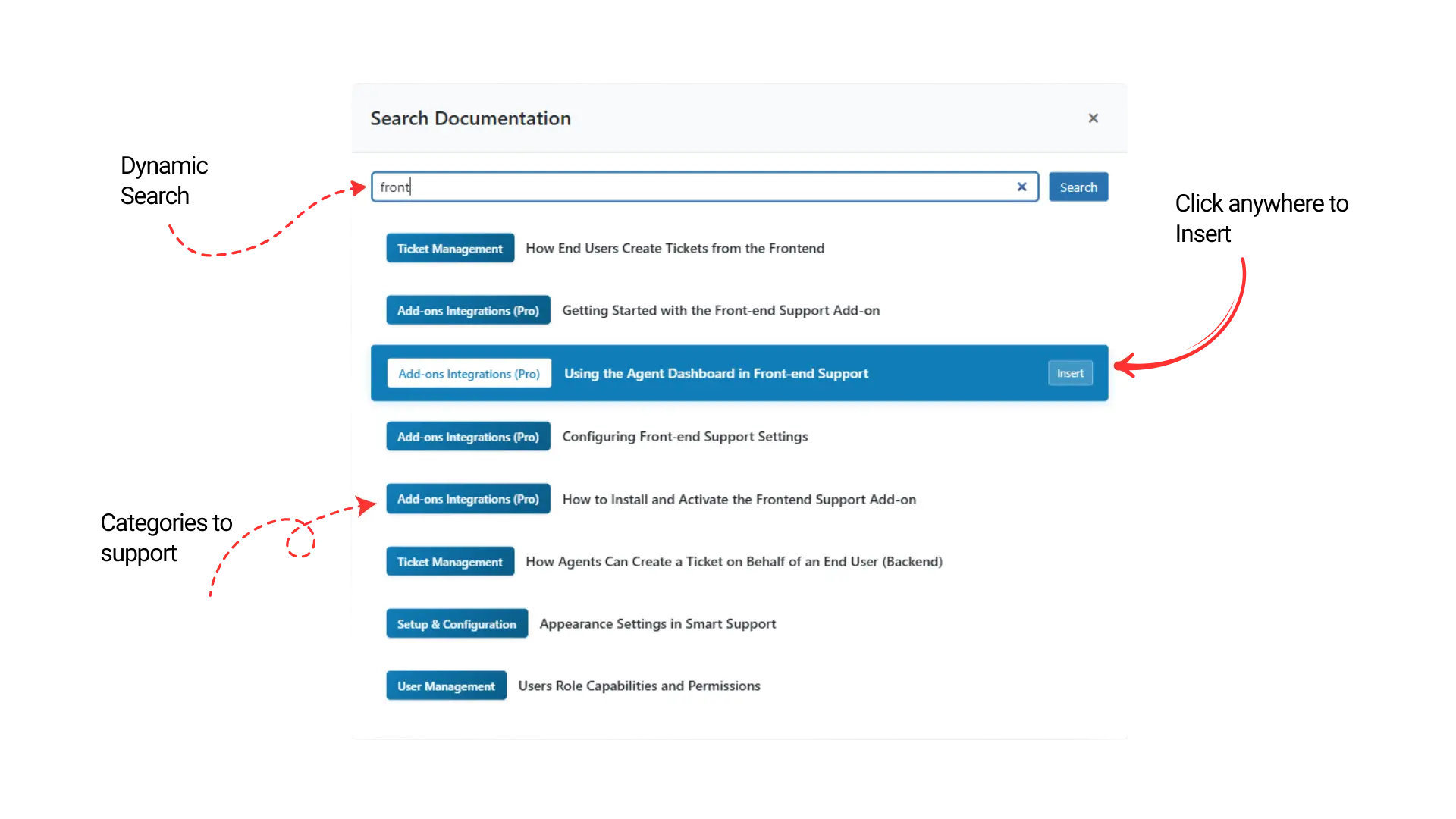
- A modal opens with a searchable list of knowledge base articles
- The agent selects an article
- The article link is instantly inserted into the reply
Inserted format:
Article Title — https://example.com/article-url
Requirements
Before using this add-on, make sure the following plugins are installed and activated:
- Smart Support (required)
- Instant Knowledgebase (required)
Minimum system requirements
- WordPress 5.0+
- PHP 7.4+
Installation Guide
Step 1: Upload the Plugin
Once you complete the purchase of your subscription you will instantly have access to the add-on file. Simply download the .zip file and upload it to your WordPress plugin directory by going to Plugins → Add New → Upload Plugin.
Step 2: Activate the Plugin
- Go to WordPress Admin → Plugins
- Locate Smart Support – Documentation
- Click Activate
Step 3: Activate your license
After activation, the documentation will display a notification prompting you to activate your license. Simply click the Activate License link, or navigate to the License tab under Smart Support > License. Enter your license key in the designated license field and click Activate. Once activated, you will be able to view the remaining license validity period and the active license status.
Using the Documentation Feature
Step 1: Open a Support Ticket
- Go to Smart Support → Tickets
- Open any existing ticket
- Scroll to the Reply section
Step 2: Open Documentation Search
In the reply editor, you’ll see a Documentation button next to the Internal Note button.
Click Documentation to open the article search modal.
Step 3: Search for Articles
Inside the modal:
- Type keywords related to the issue
- Articles are fetched from Instant Knowledgebase
- Each result shows:
- Article title
- Article category (in brackets)
Example:
[Getting Started] How to Configure Email Notifications
Step 4: Insert Article into Reply
- Click the desired article
- The article is instantly inserted into the reply editor
Inserted format:
How to Configure Email Notifications — https://your-site.com/docs/email-notifications
You can:
- Add additional explanation text
- Insert multiple articles in one reply
- Edit or remove the link before sending
Step 5: Send the Reply
Once your reply is ready:
- Click Send Reply
- The customer receives the documentation link inside the ticket response
Smart Support – Documentation bridges your support tickets and knowledge base, allowing agents to deliver faster, clearer, and more consistent support—without leaving the ticket interface.
It’s ideal for:
- Growing support teams
- Knowledge-base-driven products
- High-volume customer support environments