Add-ons Integrations (Pro)
Email Bridge Dashboard Overview
The Dashboard is the central hub of the Email Bridge add-on. It provides a quick overview of your email integration status, activity, and system health.
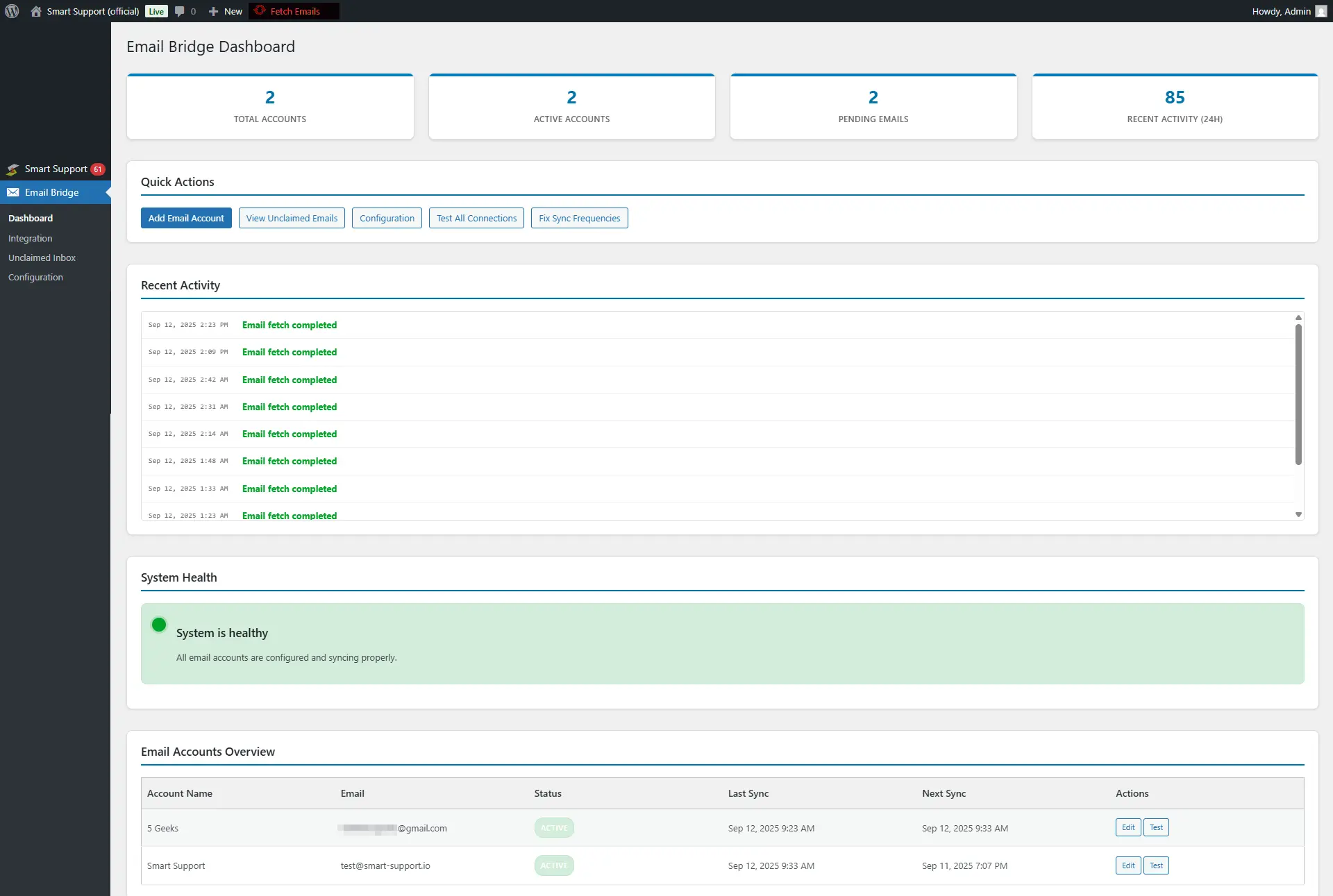
When you go to Smart Support > Email Bridge > Dashboard, you’ll see the following sections:
1. Account Summary
At the top, you’ll find quick stats:
- Total Accounts – Number of connected email accounts.
- Active Accounts – How many accounts are currently active and syncing.
- Pending Emails – Emails waiting to be processed.
- Recent Activity (24H) – Number of recent fetch and sync actions.
2. Quick Actions
These shortcuts help you manage email accounts and connections quickly:
- Add Email Account – Connect a new support inbox (e.g., Gmail, Outlook, Zoho).
- View Unclaimed Emails – Jump directly to the Unclaimed Inbox.
- Configuration – Go to global settings.
- Test All Connections – Verify all accounts are syncing properly.
- Fix Sync Frequencies – Reset sync schedules if emails are not being fetched on time.
3. Recent Activity
This section shows the history of email sync operations, including:
- Successful email fetches (in green).
- Connection failures or errors (in red), such as IMAP issues.
👉 Use this log to identify and troubleshoot connection problems quickly.
4. System Health
A health indicator that shows if all accounts are configured and syncing properly.
- Green (Healthy) – Everything is working fine.
- Red (Error) – At least one account has connection or sync issues.
5. Email Accounts Overview
A list of all connected accounts with details:
- Account Name & Email – The friendly name and email address.
- Status – Active or Inactive.
- Last Sync / Next Sync – Helps confirm that accounts are fetching emails on schedule.
- Actions – Options to Edit account settings or Test the connection.
✅ Tip: Use the Dashboard as your first stop when troubleshooting issues. If emails are not becoming tickets, check here to see if connections are failing or accounts are inactive.