Add-ons Integrations (Pro)
How to use Smart Support – Private Credentials
Smart Support – Private Credentials is an add-on for the Smart Support plugin that allows customers and support agents to securely share sensitive access details—such as usernames, passwords, and URLs- directly inside support tickets.
Instead of sending credentials via email or third-party tools, all sensitive data stays inside the ticket system and is automatically removed when the ticket is resolved or closed.
Key Use Cases
- Sharing WordPress admin or hosting credentials
- Providing temporary access to staging or test environments
- Sending API keys or service logins during troubleshooting
- Keeping sensitive data out of email and chat history
How Customers Add Private Credentials
- Open an existing support ticket from the frontend.
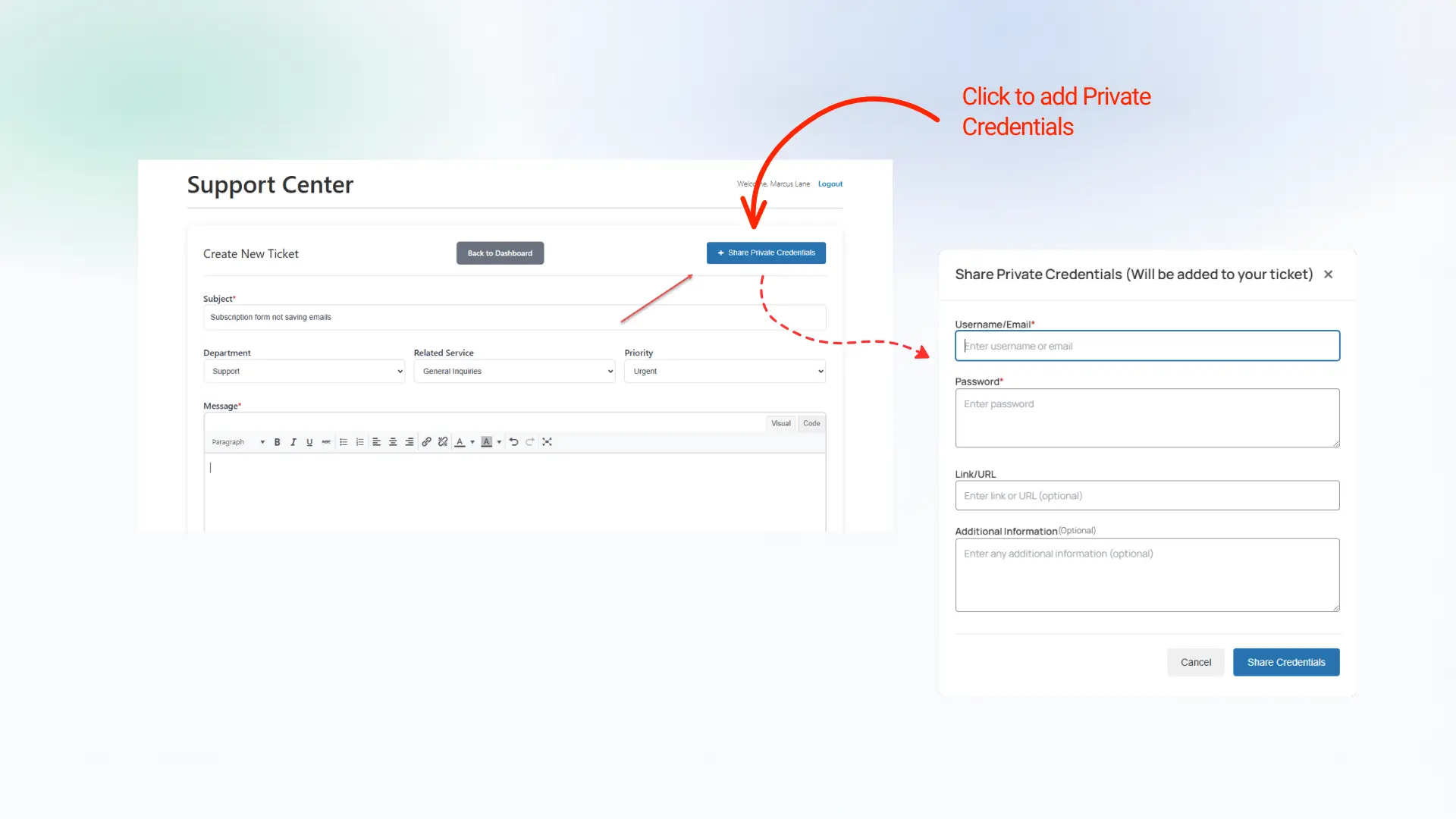
- Click the plus (+) button near the ticket reply area.
- A modal form will open.
- Enter the following information:
- Username (required)
- Password (required)
- Link / URL (optional)
- Additional Information (optional)
- Submit the form.
The credentials are immediately saved and linked to the ticket.
How Agents View Credentials
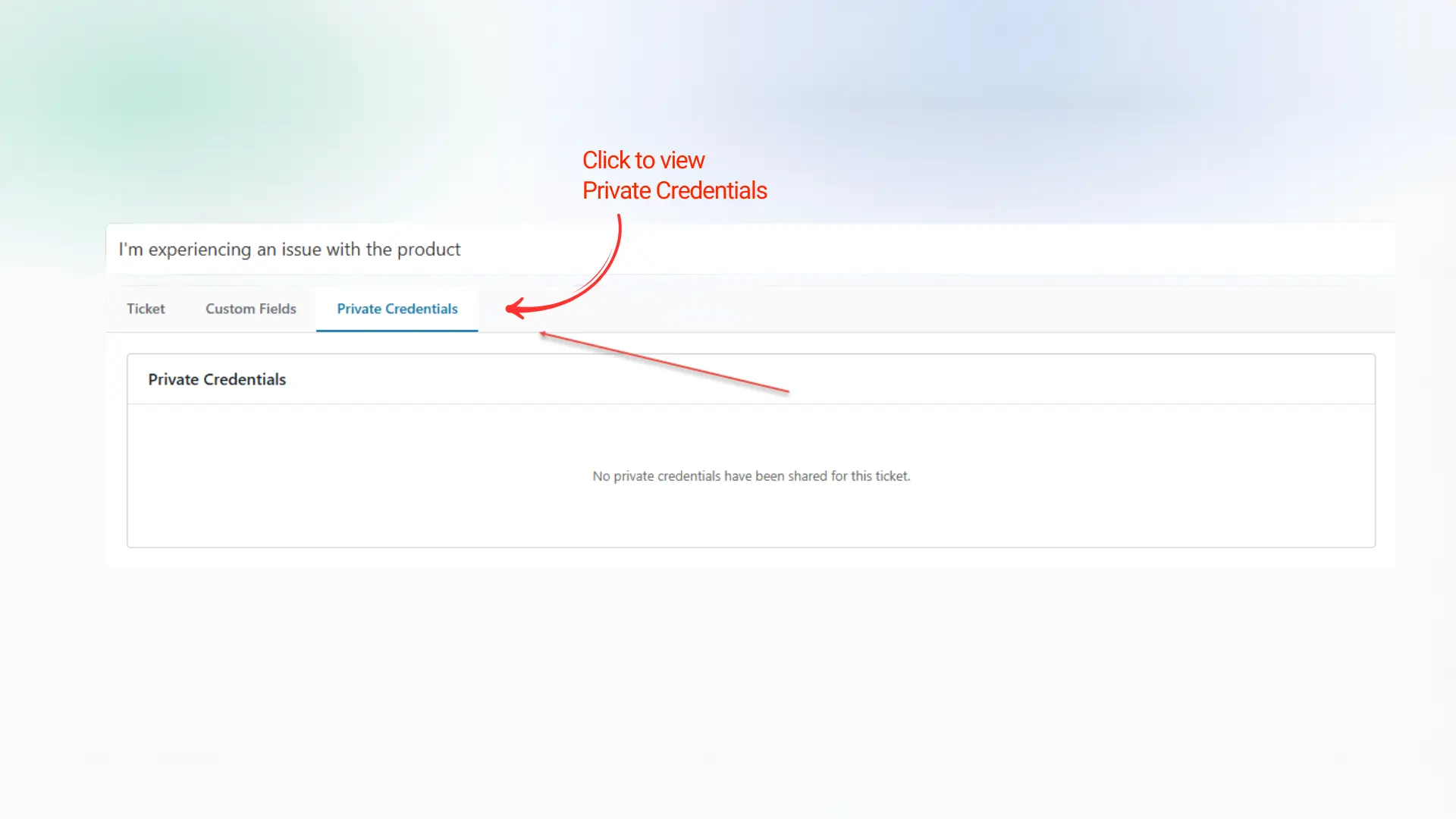
- Open the ticket in the WordPress admin dashboard.
- Navigate to the Private Credentials tab.
- View all submitted credentials in plain text.
- Review associated links and additional notes.
Credentials are isolated from public ticket replies and only visible to authorized agents.
Editing Credentials
- Additional Information can be edited directly by agents.
- Username, Password, and Link fields cannot be modified directly.
- To update core credential fields:
-
- Delete the existing credential entry.
- Ask the customer to re-submit updated credentials.
This prevents accidental overwriting of sensitive data.
Automatic Credential Deletion
For security reasons, credentials are automatically deleted when a ticket is marked as:
- Resolved
- Closed
No manual cleanup is required.
This ensures sensitive information is never stored longer than necessary.
Security Notes
- Credentials are stored securely in the WordPress database.
- Access is limited to the associated ticket only.
- For production environments, additional encryption or server-level security is recommended.
- Avoid sharing permanent credentials whenever possible.