Do Customers Need an Account to Submit a Support Ticket in WordPress?

Anahita
- 2026-11-24
- Best Practices & Strategies, Smart Support Plugin
Customers can submit a support ticket without creating an account if your help desk allows it. Guest ticket submission in WordPress gives people a way to ask for help using their email address. It’s useful for shoppers who checked out as guests, visitors with presales questions, and customers who can’t sign in.
Whether you should require a login depends on what the customer is asking you to do. Someone checking whether you ship to their country can get a direct answer. Someone asking you to change the email address on an existing account needs to verify that the account is theirs.
When should you allow guest support tickets?
Guest tickets work well when a customer needs a way to start a conversation and your team can decide what to verify once they know the issue. Here are four common situations:
| Customer request | Suggested support flow |
|---|---|
| “Does this product work with my setup?” | Accept a guest ticket and ask for the product or setup details you need to answer. |
| “I checked out as a guest and my order hasn’t arrived.” | Accept a guest ticket. Ask for the order number and verify the requester before sharing order details. |
| “I can’t sign in to my account.” | Accept a guest ticket and direct the customer through your account recovery process. |
| “Please change the email address on my account.” | Use your account verification process before making the change. |
This approach is especially useful for a WooCommerce store with guest checkout. A shopper who bought something without registering can ask about delivery or start a return without creating a new account just to reach your team.
When should customers sign in?
A signed-in support portal makes sense when customers regularly return to view their ticket history or ask questions about a product, subscription, or account. It gives them a place to find previous replies and follow several requests at once. Smart Support’s customer dashboard lets registered users view, reply to, and track their tickets.
For requests that involve changing account details or disclosing private information, follow the verification steps appropriate to the request. A guest ticket can still be the starting point, especially when the customer’s problem is that they’ve lost access to the account.
How guest ticket submission works in Smart Support
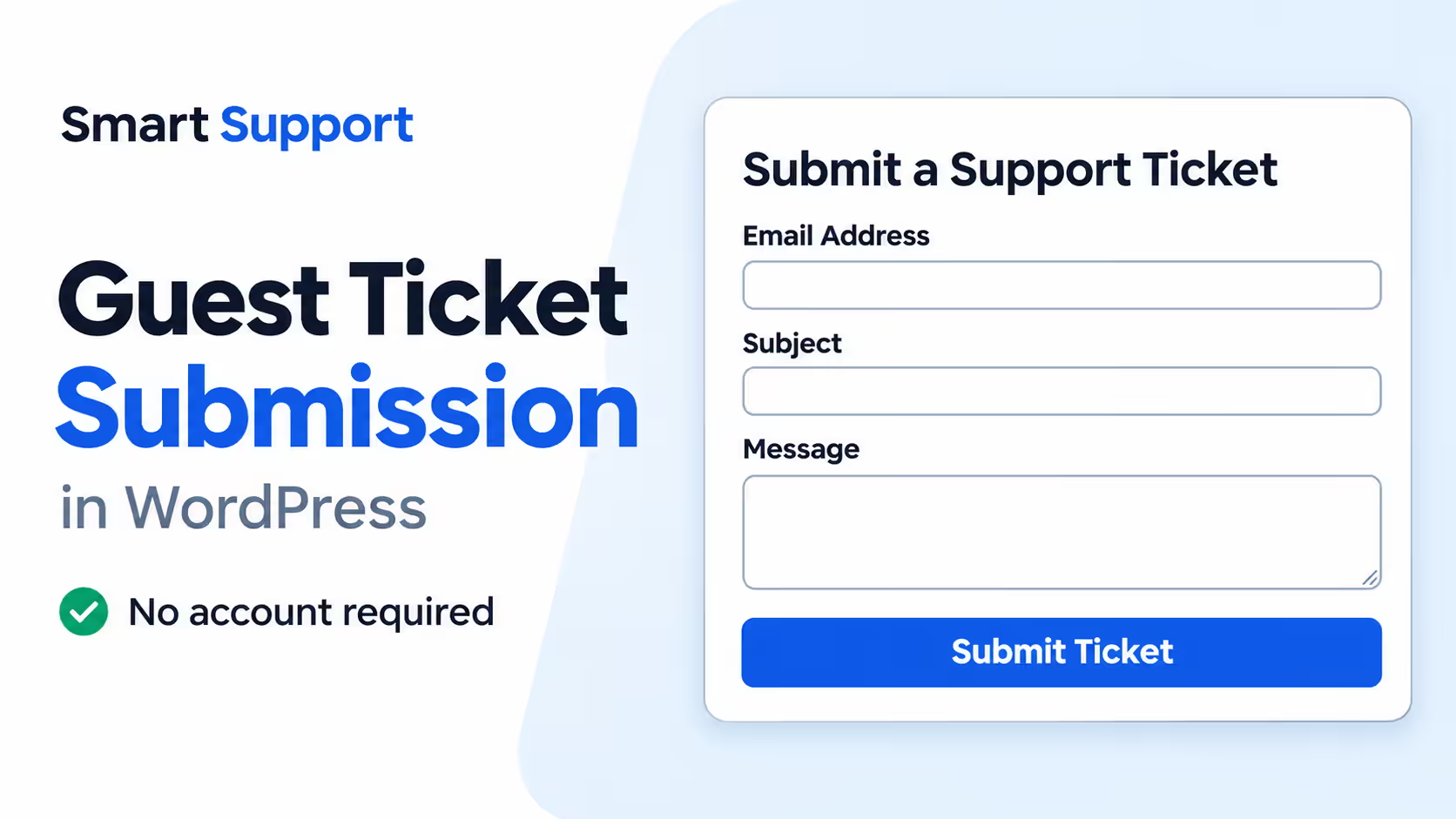
With the optional Smart Support Guest Support add-on, a visitor submits a request using their email address. They receive a private, time-limited link that lets them view and reply to the ticket. Agents handle guest requests alongside registered customer tickets in the same dashboard.
Keep the form short. An email address, a subject, and a description are enough to start most conversations. If you support online orders, consider making the order number optional so that someone with a presales question can still use the form.
Before making the form public, submit a test ticket as a guest. Check that the confirmation email arrives, the access link opens the right ticket, and you can reply from that page. Smart Support also lets you configure submission limits, attachment settings, and link expiration to suit your workflow.
Want to give customers a way to reach you without signing in? Explore the Smart Support Guest Support add-on and follow the Guest Support setup guide.
Enjoyed this article?
Subscribe to get new posts by email.

About the author
Smart Support Team builds tools for happier, faster support.
