Setup & Configuration
How to Activate Your License Key?
After installing your premium add-on, the final step is to Activate Smart Support license key to ensure full functionality and access to updates. There are easy ways to find your license key:
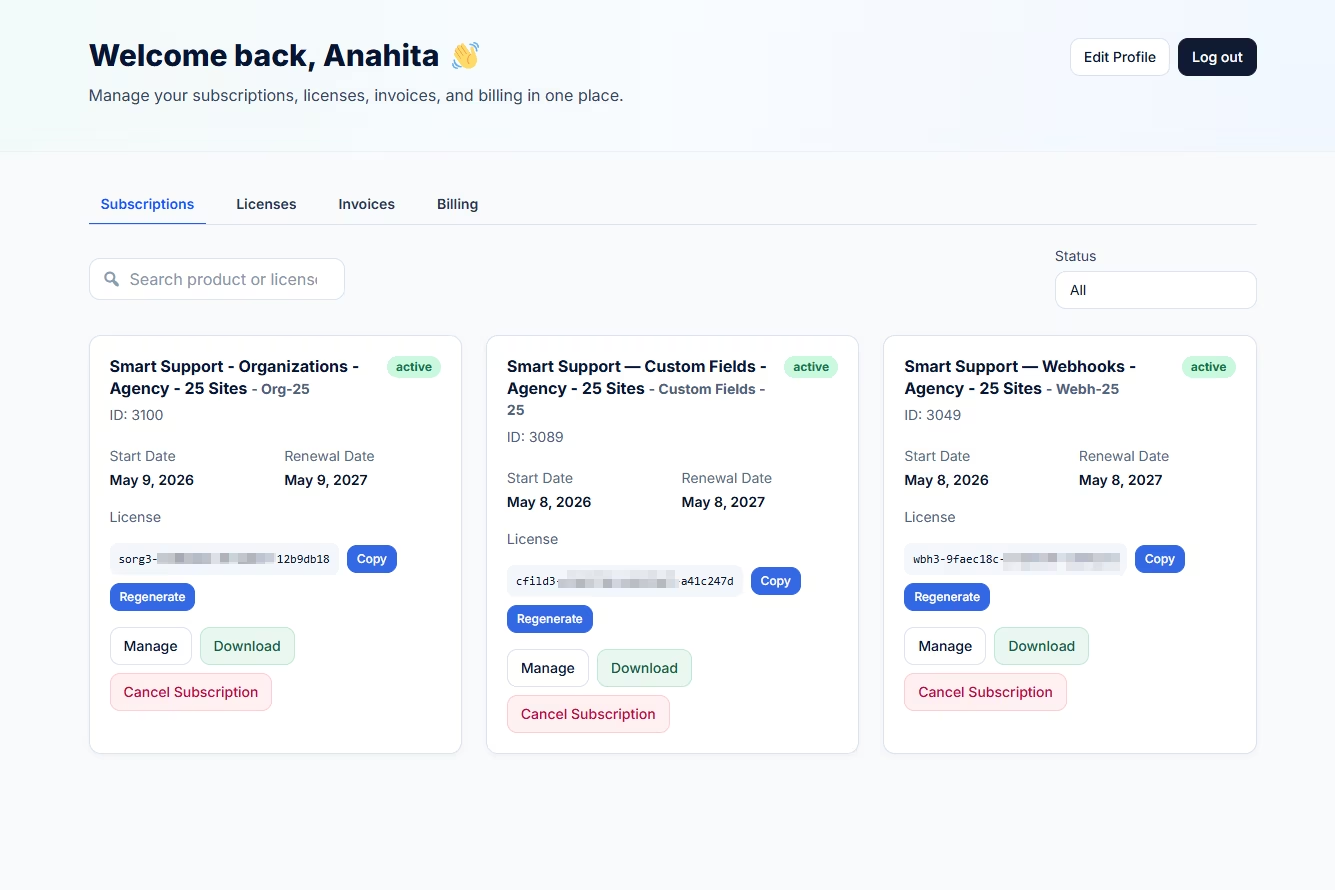
Step 1: Grab your license key from the Subscriptions Page
- Go to My Account – Smart Support &Log in (if you aren’t already).
- Click the Subscriptions menu.
- Here you’ll see all purchase details, including:
- Subscription Start/Renewal/Expiry data
- License key
- Purchased add-ons
- Click on the Copy button next to the license key.
Step 2: Activate Your License Key in WordPress
- Log in to your WordPress Admin Dashboard.
- In the left-hand menu, find Smart Support.
- Click Smart Support > License.
- On the License Activation page, find your installed add-on.
- Paste your copied license key into the appropriate field.
- Click Activate.
Troubleshooting License Activation
If you encounter issues activating your license key:
- Invalid License Key – Double-check you copied the full key with no extra spaces, and you are using the license key in the related add-on license field.
- License Already in Use – Licenses are tied to the number of sites allowed in your plan. If you’ve reached the limit, deactivate the license from another site via your License Manager.
- Expired License – Check your subscription status on the Subscriptions page. You’ll need to renew for continued access.
✅ Once activated, your add-on features will be unlocked, and you’ll receive automatic updates and support.